How to Setup IPTV on Amazon Firestick & Fire TV in 5 Easy Steps
A complete, beginner-friendly tutorial on installing Downloader, configuring IPTV Smarters Pro or TiviMate, and streaming 4K channels on your Firestick.
Alex Rivera
Hardware & App Specialist
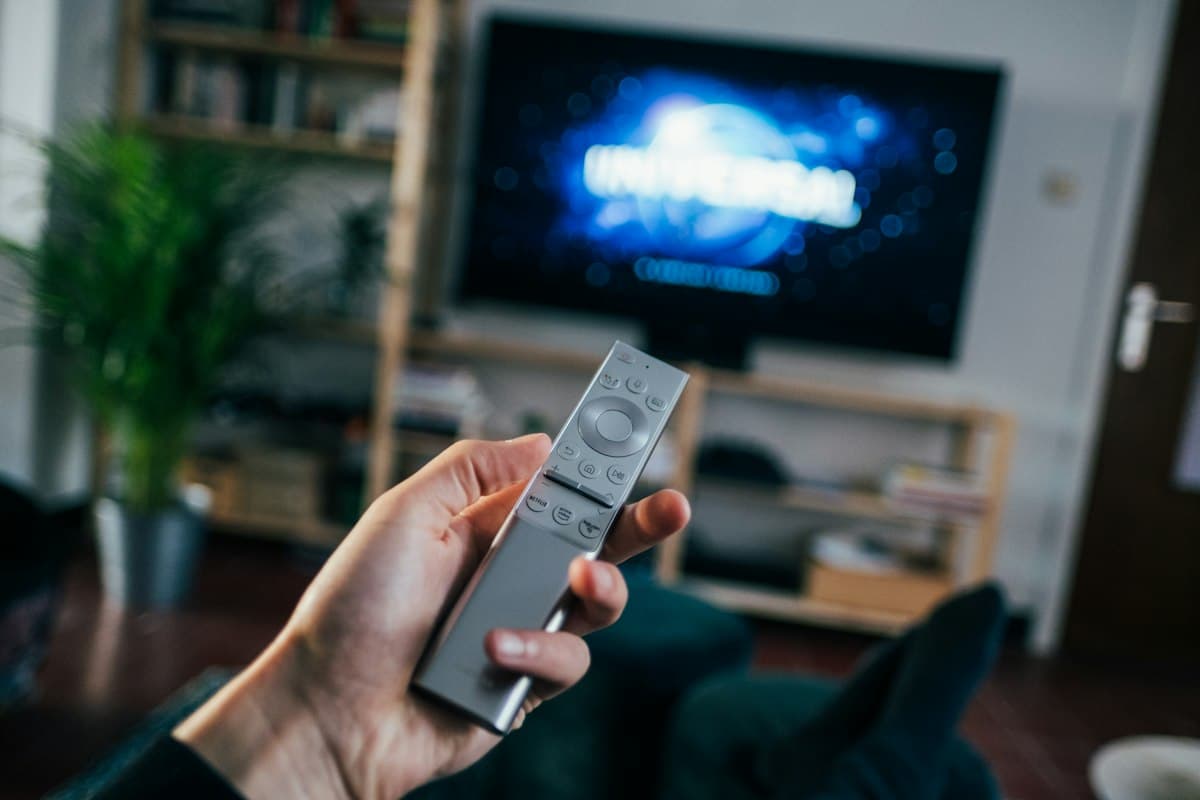
- How to enable developer options and install Downloader on Firestick.
- Recommended players: IPTV Smarters Pro and TiviMate IPTV Player.
- How to enter Xtream Codes API credentials effortlessly.
- Optimization tips to prevent buffering and maximize 4K picture quality.
Step 1: Install the 'Downloader' App
From your Firestick Home Screen, navigate to Find > Search and type 'Downloader'. Select the orange Downloader app icon by AFTVnews and click 'Download' or 'Get'. Once installed, return to your Home Screen.
Step 2: Enable Apps from Unknown Sources
Amazon requires you to give Downloader permission to install third-party APKs:
- Open Firestick Settings (gear icon on the right).
- Select 'My Fire TV' > 'Developer Options'. (If Developer Options is hidden, go to About > click 'Fire TV Stick' 7 times until you see the 'You are now a developer' message).
- Click 'Install Unknown Apps' and turn Downloader to ON.
Only download verified IPTV players from trusted developer URLs. ViewTV IPTV credentials work with all official, industry-standard media players.
Step 3: Download & Install Your IPTV Player
Launch Downloader and grant it storage permissions. In the URL box, type the direct code or URL for your favorite player:
- For IPTV Smarters Pro: Enter code '25240' or download directly from official release.
- For TiviMate: Enter code '278077' to fetch the latest stable APK.
- Click 'Go', let the file download, then click 'Install'. Once complete, open the application.
Step 4: Connect Your ViewTV IPTV Account
Open your installed IPTV app and choose 'Login with Xtream Codes API'. Fill in the details provided in your ViewTV IPTV activation email/WhatsApp message:
- Any Name: Enter 'ViewTV IPTV'
- Username: Enter your assigned account username
- Password: Enter your account password
- Server URL: Enter the exact portal URL provided (e.g., http://your-server-domain:port)
Click 'Add User' or 'Login'. The application will automatically synchronize your Live TV channels, EPG guide, and VOD cinema library.
Step 5: Optimize Firestick for Buffer-Free Playback
To guarantee smooth, continuous streaming during high-traffic sporting events:
- Clear App Cache regularly in Firestick Settings > Applications > Manage Installed Applications.
- In your IPTV player settings, switch Video Player buffer size from Normal to High/Very High.
- Restart your Firestick once weekly to clear background RAM.
Get Instant Access to ViewTV IPTV
50,000+ channels, 134,000+ VODs, and 4K sports with Anti-Freeze technology. Compatible with all devices.
Written by Alex Rivera
Hardware & App Specialist at ViewTV IPTV. Passionate about next-generation streaming architecture, cord-cutting economics, and 4K sports broadcasting.